
Computer Won’t Turn On? 7 Things to Check Before Calling for Repair
Carlo Charles
Carlo The Computer Guy | Palm Beach PC Services
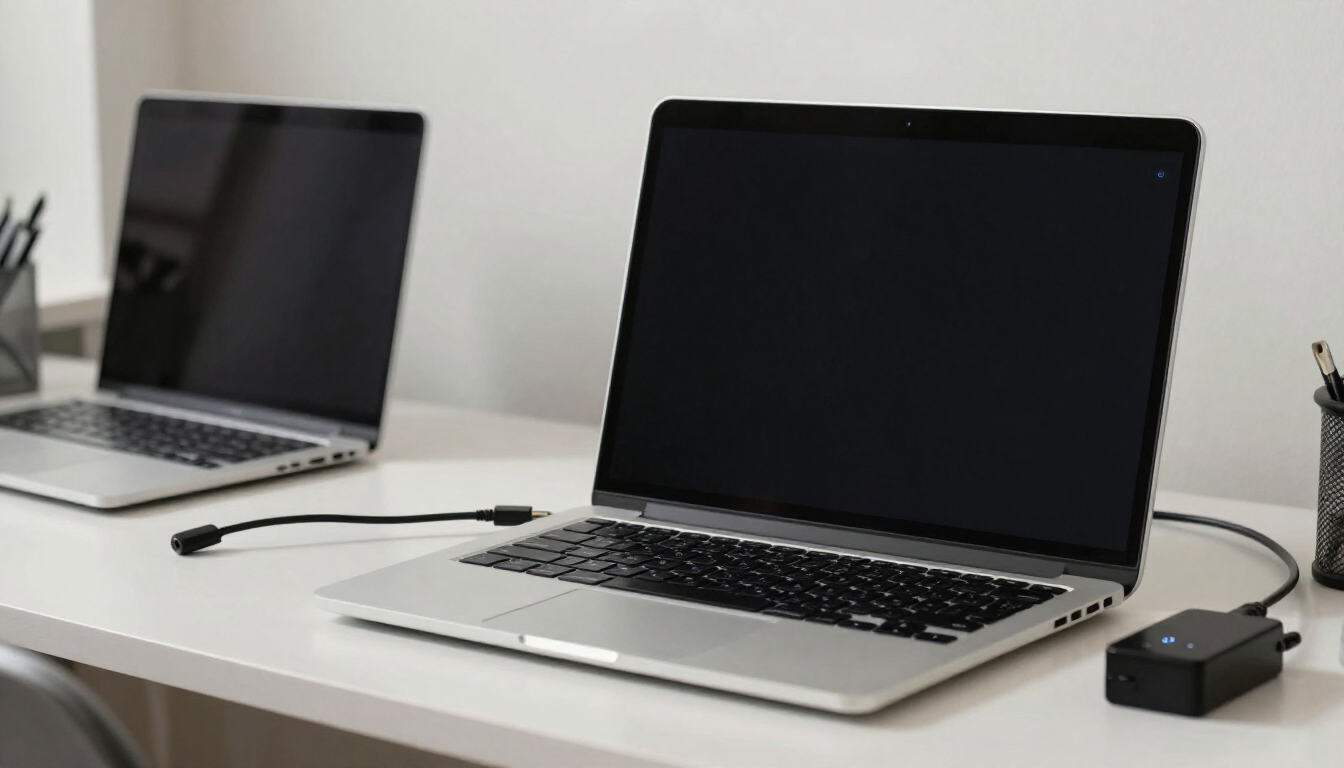
When you press the power button and nothing happens, the first thing to know is that “won’t turn on” can describe several very different problems. The safest next step depends on what your computer is actually doing — or not doing — in that moment.
In most cases, a computer that appears dead is not necessarily broken beyond repair. It may have no power reaching it, a charging problem, a display issue, or a startup failure that happens before Windows loads. Identifying which of those you are dealing with is the first step toward diagnosing the issue — and toward protecting your files before anything gets worse.
As a quick answer: check the power outlet, cable, and charger first; look for any power lights, fan noise, or charging indicators; confirm the monitor is on and bright enough; disconnect nonessential USB devices; and, if the computer responds normally, try a single proper restart. Avoid repeatedly forcing restarts, opening the power supply, disassembling batteries, or running destructive recovery steps, especially if important photos or documents may be at risk.
This guide walks through what each symptom usually means, seven safe checks you can try before calling for computer repair, and honest guidance on when to stop and get help.
What Is Your Computer Actually Doing?
“It won’t turn on” can mean a computer with no power at all, a laptop that won’t charge, a machine that powers on but shows a black screen, one stuck on its manufacturer logo, or Windows 11 that fails to boot or repeatedly restarts. Each points to a different cause, and the distinction matters.
The table below gives a quick, non-absolute guide to a safe first check and when to stop and seek professional help. Every computer is a little different, so use it as a starting point, not a confirmed diagnosis.
| What you notice | Possible causes | Safe first check | When to stop and seek professional help |
|---|---|---|---|
| No power at all — no lights, no fan, no sound | Tripped outlet, faulty cable or adapter, failed power supply, or hardware fault | Test another wall outlet and a known-good power cable or charger | No response after testing outlets and cables, or a burning smell is present |
| Laptop will not charge or hold power | Worn battery, faulty charger, or damaged charging port | Try a different compatible charger and outlet; check for a loose port | Holds no charge, port is loose, or battery is visibly swollen |
| Power light is on but the screen stays black | Display or backlight fault, brightness, sleep state, or startup failure | Adjust brightness and try an external monitor | Black screen persists after a single proper restart |
| Stuck on the manufacturer logo | Startup hang, storage drive issue, recent update, or peripheral conflict | Disconnect nonessential USB devices and observe startup | Repeatedly stalls at the logo or restarts on its own |
| Windows 11 fails to boot or shows a recovery screen | Software error, failed update, corrupted startup files, or drive problem | Record the exact error message without assuming its meaning | Important files are at risk or startup keeps failing |
| Computer restarts unexpectedly or loops | Recent update, overheating, hardware fault, or failing storage drive | Note when the restart happens and any on-screen message | Restarts repeat continuously or important data is at risk |
| Unusual clicking, grinding, or whining sounds | Possible mechanical storage drive failure or a failing fan | Stop using the drive and note the sound | Clicking or grinding from a drive holding important files |
These are possible explanations, not confirmed diagnoses. A symptom like a black screen can have a display cause, a power cause, or a software cause, and telling them apart usually takes a closer look.
7 Things to Check Before Calling for Computer Repair
These seven checks are safe for most users. The goal is to observe what happens, not to open the computer or bypass any electrical protection. If a check does not clearly help, stop and note what you saw.
1Verify the power outlet, cable, and charger
Start with the simplest explanation. Test a different wall outlet, since a tripped breaker or a faulty surge protector can cut power without any obvious sign. For a laptop, try a different compatible charger and inspect the charging connector for damage. For a desktop, confirm the power cable is firmly seated at both ends and that any power switch on the back of the unit is on.
What this tells you: if the computer comes to life on a different outlet or charger, the original power source was likely the problem. If there is still no response at all, the issue may be inside the computer and usually needs hands-on diagnosis.
2Check power indicators and signs of activity
When you press the power button, watch closely. Are there any power lights? Does a charging light come on when the laptop is plugged in? Can you hear the fan, feel warm air from a vent, or hear the storage drive spin up? Even a faint response is a useful clue.
What this tells you: lights and fan noise usually mean the computer is receiving power, which shifts attention toward the display or the startup process. Complete silence and no lights point back to a power or hardware issue.
3Check the monitor, brightness, and external display
A “dead” computer is sometimes a working computer with a display problem. Confirm the monitor is powered on and connected securely. On a laptop, try raising the brightness with the keyboard controls. If possible, connect an external monitor to see whether the computer is actually running but the built-in screen is not showing anything.
What this tells you: if an external monitor shows the desktop, the computer is working and the issue is the display, backlight, or display cable. If nothing appears on any screen, the problem is more likely power or startup related.
4Disconnect nonessential USB devices and accessories
Unplug everything except power: external drives, printers, docks, USB hubs, cameras, and any other accessories. A faulty peripheral can occasionally block startup, and removing them isolates the computer itself.
What this tells you: if the computer starts normally with everything disconnected, one of those devices or its port may be the culprit. Reconnect them one at a time to identify which. If it still will not start, the problem is internal.
5If it responds, try one proper restart
If the computer is responding but behaving oddly, a single proper restart is reasonable. Use the normal shutdown or restart option rather than holding the power button down repeatedly. Then observe what happens when it starts up again.
What this tells you: a clean restart can resolve a temporary software or sleep-state issue. But if startup fails again, or the computer loops back to the same error, stop. Repeated forced restarts can worsen a failing storage drive and make data recovery harder.
6Record error messages, warning lights, and beep patterns
If you see an error message, a recovery screen, a blinking warning light, or hear a sequence of beeps, write down exactly what you observe. Note the wording, any error codes, and where startup stops — for example, at the manufacturer logo or on a blue screen.
What this tells you: these details are genuinely useful to a technician, but do not assume you know what they mean. A beep pattern or error code can point in several directions, and guessing can lead to the wrong repair.
7Check for recent changes or physical damage
Think about what changed recently. Was there a Windows update, a power outage, a storm, a newly connected device, or a drop or spill? Even a recent software installation can sometimes interfere with startup.
What this tells you: a problem that began right after an update or outage often has a software or power cause. Damage from a drop, liquid, or heat is a different matter entirely and usually needs hands-on attention before anything is powered on again.
Throughout these checks, the principle is the same: observe, do not force. Do not open power supplies, disassemble batteries, bypass electrical protections, repeatedly force restarts, or run destructive recovery operations. If a check does not clearly resolve the problem, stop and note what you saw.
Before You Try Another Fix, Think About Your Files
If your computer holds family photos, business documents, or other important files, the single most important thing is to avoid making the situation worse. Repeated startup attempts on a failing storage drive can damage it further and turn a recoverable problem into a permanent loss.
This is why I always emphasize protecting your data before any invasive repair. A computer that will not boot usually still has intact files on its storage drive, and those files can often be recovered by a technician using appropriate methods. Our data recovery service is set up for exactly these situations.
Be cautious with steps that sound like quick fixes but can erase everything:
- Premature factory resets can remove personal files and installed programs without fixing the underlying hardware problem.
- Drive formatting erases the file system and hides your existing files, making recovery much harder.
- Unnecessary operating-system reinstalls overwrite data and rarely address a failing drive or power issue.
- Unverified recovery software can write to the very drive you are trying to save, overwriting the files you need.
If you suspect a drive problem — clicking sounds, missing files, or a laptop that will not boot — stop forcing it. Our guide on what to do when an external hard drive crashes covers the same principle: power off, do not keep testing, and get help before risking your files.
Laptop vs. Desktop Startup Problems
Laptops and desktops share many symptoms, but the troubleshooting path differs in important ways.
Laptops rely on a battery and a charger, so a “won’t turn on” problem often involves the charging system. A worn battery, a faulty charger, or a damaged charging port can all prevent startup. Laptops also have a built-in screen, which means a black screen could be a display fault rather than a power failure. For a deeper look at laptop-specific symptoms, our article on laptop repair in Palm Beach Gardens walks through the signs that a laptop needs professional help.
Desktops draw power through an internal power supply and rely on a separate monitor. That means a desktop “no power” issue could be the outlet, the power cable, the power supply, or the monitor — not necessarily the computer itself. A desktop that appears dead may simply have a monitor that is off or disconnected, while the tower runs normally.
Desktops also tend to have more external peripherals — monitors, keyboards, mice, speakers, external drives — any of which can occasionally interfere with startup. Disconnecting nonessential devices is often more productive on a desktop than a laptop.
When Is a Black Screen Not a Dead Computer?
A black screen is one of the most easily misread symptoms, because it can come from three very different problems.
- Power failure: the computer is not receiving power at all. There are no lights, no fan, and no sound. This points to the outlet, cable, charger, or power supply.
- Display failure: the computer is running but the screen is not showing anything. You may hear the fan or drive, and the power light is on. This points to the monitor, backlight, brightness, or display cable.
- Operating-system startup problem: the computer powers on and the display works, but Windows does not load. You may see the manufacturer logo, a recovery screen, or an error message. This points to software, a recent update, or a storage drive issue.
Telling these apart is exactly what the checks above are for. If you can hear the fan and see a power light but the screen stays dark, the computer is probably not “dead” — it may simply have a display or startup problem that a technician can diagnose.
When Should You Stop Troubleshooting?
Some warning signs mean you should stop immediately and get professional help rather than continue:
- Burning smell or unusual heat coming from the computer or charger.
- Liquid damage from a spill, or visible corrosion around ports.
- Unusual mechanical noises such as clicking, grinding, or whining, which can indicate a failing storage drive.
- Repeated boot failures or a startup loop that keeps restarting.
- Important data at risk — family photos, business documents, or files that are not backed up elsewhere.
- A visibly swollen battery or a trackpad and keyboard that are lifting, which is a safety concern.
In these situations, continuing to force restarts or run recovery tools can cause real harm. Power the computer off, leave it off, and get help before attempting anything else.
What Happens During Professional Computer Diagnosis?
When a computer will not turn on, a professional diagnosis follows a general process designed to find the cause without risking your data:
- Understanding the reported symptoms: what happens when the power button is pressed, when the problem started, and any error messages or sounds you noticed.
- Checking safe power and hardware basics: the outlet, cable, charger, power indicators, and charging connection.
- Identifying the type of issue: whether the problem is display, storage, hardware, or software related.
- Discussing findings and repair options: an honest explanation of what is wrong and what the realistic options are.
- Considering data protection first: checking on the safety of your files before any invasive repair is attempted.
The goal is to diagnose carefully before recommending replacement, so you only spend when it makes sense. If you are weighing that decision, our guide on whether to repair or replace your computer walks through the cost and age factors. And if you decide to bring it in, our tips on what to do before taking your computer to a repair shop help you prepare.
Onsite vs. Remote Computer Support
A computer that will not power on usually needs physical assessment. The problem involves power, hardware, or a display that cannot be reached through a screen, so onsite service is generally the right fit when there are no signs of life, a black screen, or a startup failure.
Remote support can be suitable when the computer turns on, reaches the desktop, and has an internet connection, but experiences a software issue, a startup error, or a configuration problem. In those cases, secure remote assistance can often resolve the problem quickly without a visit. Our remote computer support service covers those situations.
Computer Repair in Palm Beach Gardens and Nearby Communities
Palm Beach PC Services is based in Palm Beach Gardens and provides onsite computer repair throughout Palm Beach County, including Jupiter, North Palm Beach, Juno Beach, Riviera Beach, and West Palm Beach. We help homeowners, seniors, remote workers, and small businesses with computers that will not turn on, will not charge, show a black screen, or fail to boot. For older adults who prefer patient, in-home help, our senior computer support service covers these same startup problems with a gentler approach.
Frequently Asked Questions
Why won't my computer turn on even though it's plugged in?
A computer that is plugged in but shows no signs of life may have a tripped outlet, a faulty power cable or adapter, a damaged charging port, a failed power supply, or a deeper hardware problem. Start by testing a different wall outlet and a known-good cable or charger, and watch for any power lights, fan noise, or charging indicators. If there is still no response at all, the issue usually requires hands-on diagnosis rather than repeated restart attempts.
Why does my laptop have a black screen but the power light is on?
When the power light is on but the screen stays black, the laptop is receiving power but something is preventing a normal display. Possible causes include a display or backlight problem, a loose monitor connection, brightness set too low, a sleep or hibernation state that did not resume correctly, or a startup failure before Windows loads. Try adjusting brightness, connecting an external monitor, and performing a single proper restart. If the black screen persists, professional diagnosis can determine whether the issue is the display, the hardware, or the operating system.
What should I do if my computer turns on but Windows won't start?
If the computer powers on but Windows does not load, note any error messages, beep patterns, or the point where startup stops, such as the manufacturer logo or a blue recovery screen. A single proper restart is reasonable, but avoid repeatedly forcing restarts, factory resets, or drive formatting, especially if important files may be at risk. Record what you see and seek professional diagnosis, which can often identify whether the cause is a software error, a recent update, or a failing storage drive.
Could a bad charger or battery prevent my laptop from turning on?
Yes. A worn-out battery, a faulty charger, or a damaged charging port can all prevent a laptop from turning on or staying powered. Try a different compatible charger and a different wall outlet, and check whether the charging connector feels loose. If the laptop only works while plugged in, dies quickly off the charger, or will not charge at all, the battery or charging system likely needs hands-on attention. A visibly swollen battery is a safety concern and should be addressed promptly by a technician.
Can a computer that won't start still have recoverable files?
In most cases, yes. A computer that will not power on or boot usually still has intact data on its storage drive. The files can often be recovered by a technician using appropriate methods, even when the screen stays black or the system will not load Windows. Avoid repeated restarts and destructive recovery steps, which can worsen a failing drive and make recovery harder. If important photos or documents are involved, stop forcing restarts and get help before attempting invasive repairs.
Should I reset Windows if my computer won't boot?
Not as a first step. A factory reset or Windows reinstall can erase personal files and installed programs, and it does not fix hardware problems such as a failing drive, a dead battery, or a damaged charging port. Before resetting, record any error messages and consider professional diagnosis, which can identify the actual cause and help protect your files. Resetting Windows should only be considered after the underlying problem is understood and your data is safely backed up.
Can you repair a computer that won't turn on at my home?
Yes. Palm Beach PC Services provides onsite computer repair in Palm Beach Gardens and nearby Palm Beach County communities, including Jupiter, North Palm Beach, Juno Beach, Riviera Beach, and West Palm Beach. Onsite visits are useful because a computer that will not power on usually needs physical assessment of the power source, cables, display, and hardware. When the problem is software-related and the computer can connect to the internet, secure remote support may also be an option.
Can a computer startup problem be fixed remotely?
Sometimes. Remote support can help when the computer turns on, reaches the desktop, and has an internet connection, but experiences a software issue, a startup error, or a configuration problem. A computer that will not power on at all, shows only a black screen, or cannot reach the operating system generally requires hands-on, onsite assessment because the problem involves physical hardware that cannot be diagnosed through a screen.
Diagnose First, Then Decide
A computer that will not turn on is rarely as simple as it first appears. The same “won’t turn on” complaint can mean a tripped outlet, a dead charger, a display fault, or a failing storage drive — and the right next step depends on which one it is.
The seven checks above are safe for most users and often reveal the cause without any risk to your files. When they do not, or when you notice warning signs like burning smells, clicking sounds, or repeated boot failures, the safest move is to stop, protect your data, and get help.
Diagnosis should always come before replacement. Understanding what is actually wrong is what keeps a small problem from becoming an expensive one.
Need Help With a Computer That Won’t Turn On?
Palm Beach PC Services provides onsite computer repair for homeowners, seniors, remote workers, and small businesses throughout Palm Beach Gardens, Jupiter, North Palm Beach, Juno Beach, Riviera Beach, West Palm Beach, and nearby communities. We diagnose carefully, protect your files first, and give you an honest recommendation before any repair.
Need help with a computer that won’t turn on? Call or text Carlo at 561-351-5858.
Website: palmbeachpcservices.com
Palm Beach PC Services — Tech Made Simple. Support Made Personal.
This article provides general troubleshooting guidance. Symptoms and causes vary by computer, and these checks are starting points rather than confirmed diagnoses.